Kunnskapsbase
How to Block DDoS Attacks on Windows Server Print
How to Block DDoS Attacks on Windows VPS?

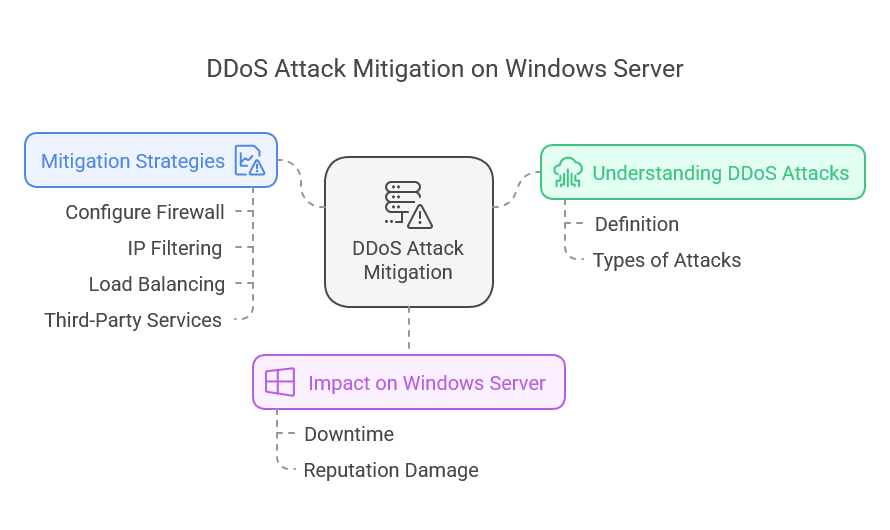
What is a DDoS Attack?
A DDoS attack, also known as Distributed Denial of Service attack, is an attempt to disable or ‘turn off’ a targeted server, service or a network. This is achieved by overwhelming the target server with an abnormal amount of incoming traffic from several different sources.
Attackers often utilize botnets, networks of compromised computers, to generate this massive volume of requests. The size of it makes it much harder for defense systems to identify authentic traffic from harmful traffic.
The objective? To prevent the target from being used by its intended users, resulting in major losses with regards to time and finances while simultaneously harming the organization’s reputation.
Understanding the primary aim requires breaking down each type of DDoS attack, including volumetric attacks, which aim to overflow bandwidth, and protocol attacks, which exploit other vulnerabilities in network protocols. This understanding breaks down the DDoS attacks aids in preparation of defenses for the impending threat.
The impact of DDoS attacks on Windows Server OS.
DDoS attacks greatly slows down the server functionality of Windows Server OS. With one too many systems flooding a server with traffic, the resources become extremely overwhelmed two the point of total shut down.
This forces competent users leave vital services unreachable. Businesses are affected with revenue loss when their websites and applications become a problem.
Also, persistent attacks can ruin a company’s image. They lose trust after going through outages or poor performance.
As previously mentioned, recovering from an attack frequently requires a lot more time and money than most people are willing to give. The expenses related to getting back to business as usual can be enormous for many firms.
Data loss is just as worrisome; important information can be lost for good during these attacks. That dilemma puts the organization, but more importantly, customers with sensitive information, at risk.
Knowing these consequences is essential for coming up with good plans to deal with issues that could completely stop your server from functioning.
Best Practices to Block DDoS Attacks on Windows Server
1. Configure Windows Firewall
The built-in Windows Firewall in your Server OS can help prevent unauthorized access. Here's how to configure it:
-
Open Windows Firewall:
- Go to
Control Panel>System and Security>Windows Defender Firewall.
- Go to
-
Create Inbound Rules:
- Select
Advanced settings. - Right-click on
Inbound Rulesand selectNew Rule. - Choose
Custom, then clickNextuntil you reach theProgramssection. - Specify the program path or choose
All programs. - In the
Protocol and Portssection, set specific TCP/UDP ports that you want to allow.
- Select
-
Block Unused Ports:
- Ensure that only necessary ports (like 80 for HTTP and 443 for HTTPS) are open. Block all others to reduce potential vulnerabilities.
2. Implement IP Address Filtering
Limiting access by blocking malicious IP addresses can significantly reduce DDoS activity:
-
Access the Windows Firewall with Advanced Security.
-
Create a New Rule:
- Go to
Inbound Rules>New Rule. - Choose
Customand then specify the IP addresses you wish to block in theScopetab.
- Go to
-
Allow Whitelisted IPs:
- Create additional rules for trusted IP addresses to ensure they have uninterrupted access.
3. Use Network Load Balancing
Configure Network Load Balancing (NLB) to spread out the incoming requests across multiple servers. This can help mitigate the effects of a DDoS attack by distributing the load.
4. Enable Connection Throttling
Implementing connection throttling can help prevent overwhelming your server with excessive requests. You can configure connection limits in the Internet Information Services (IIS) Manager:
- Open IIS Manager.
- Select your site.
- Click on
Limitsunder theAdvanced Settings. - Set connection limit parameters.
5. Utilize Third-Party DDoS Protection Services
For enhanced security, consider using third-party DDoS protection services like Cloudflare, Akamai, or AWS Shield. These services offer advanced traffic analysis and filtering to identify and mitigate DDoS traffic before it reaches your server.
6. Monitor Your Network Traffic
Continuous monitoring of your network can help you detect anomalies early:
- Use tools like Wireshark, PRTG Network Monitor, or Performance Monitor included with Windows Server to watch for unusual traffic patterns.
- Set alerts to receive notifications on unusual spikes in traffic.
7. Keep Your Software Updated
Always keep your Windows Server and security software updated to protect against known vulnerabilities. Regularly apply Windows updates and patches.
Example of Blocking an IP Address Using Windows PowerShell
To block a specified IP address, you can use Windows PowerShell:
New-NetFirewallRule -DisplayName "Block Malicious IP" -Direction Inbound -Action Block -RemoteAddress "192.168.1.1"Replace 192.168.1.1 with the actual IP address you want to block.
FAQ
Q1: What are the signs that I am experiencing a DDoS attack?
A: Typical signs include extreme slowdowns, frequent server crashes, or unavailability of your services.
Q2: Can I completely prevent DDoS attacks?
A: While you can significantly reduce the risk and impact, it's impossible to completely prevent all DDoS attacks. Employing comprehensive security measures can help mitigate risks.
Q3: Are there any legal steps I can take against DDoS attackers?
A: Yes, you can report attacks to local law enforcement or potentially engage cybersecurity experts for further legal actions.
Q4: Is there a cost associated with using third-party DDoS protection services?
A: Yes, most reputable DDoS protection services come with associated costs. Evaluate your needs and consider the potential losses from DDoS attacks when deciding on a budget.
Conclusion
To minimize DDoS attacks on your Windows Server OS, a thorough protection strategy combining features from in-house and third-party systems is essential. With implementation of the provided steps, you can better defend your system while being confidently active online. Always remember, the best DDoS protection comes from constant vigilance and regular security procedure changes.
Var dette svaret til hjelp?
Relaterte artikler
Hi Thank you for choosing service from Host4Fun . Go to run > cmd > slmgr.vbs /rearm and...
By default Windows Server 2008 firewall blocks ping requests. To enable please follow the...
By default Windows Server 2012 firewall blocks ping requests. To enable please follow the below...
Hi , Thank you for choosing Service from Host4Fun.Com. When we run command "yum update" on our...
For Guide Visit :...
