مكتبة الشروحات
How to Connect to Your VPS Using VNC طباعة
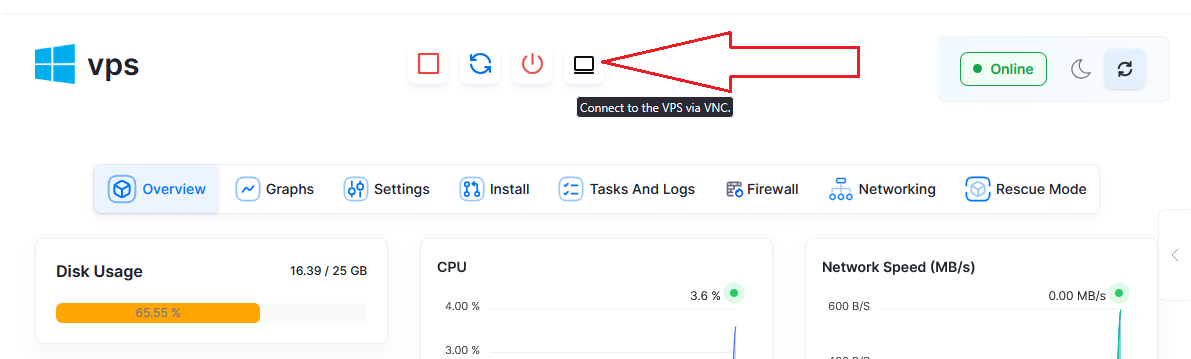
To manage your Virtual Private Server (VPS), accessing it through a VNC graphical interface is sometimes necessary. One of the ways to do it is to access it through Host4Fun Client Area or Directly Access VPS Panel, which is a well-known virtualization management tool. This tutorial will assist you in connecting to your VPS using VNC in Virtualizor with a few steps.
You can also access your VPS from Host4Fun Client Area.
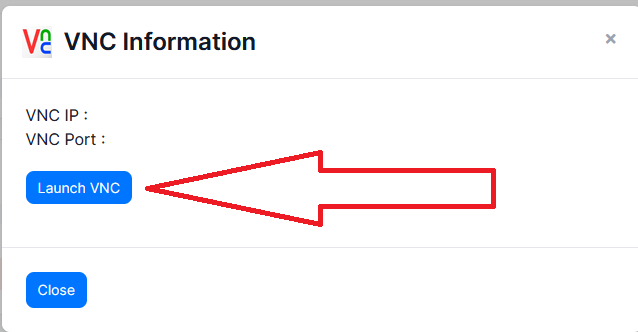
After that you need to click Lunch VNC button
How to Access VPS via VNC in Virtualizor
Step 1: Log into Virtualizor Panel
Using credentials, access the control panel for Virtualizor.
Step 2: Locate Your VPS
In the main dashboard, go to the “List VPS” section. From the active virtual servers list, select the VPS you want to connect to.
Step 3: Open VNC Console
To the right of your VPS, there are multiple buttons. Either "VNC" or "Console" should work. This will either open the VNC console window in a new tab or directly in your browser, depending on your settings.
Step 4: Access the VPS
Provided your browser supports pop-ups and has not blocked them, the VNC console should open automatically. You can treat the console as a monitor, keyboard, and mouse for your server. You may need to provide some credentials like a username and password for the VPS before gaining access.
Step 5: Interact with Your VPS
As expected, after logging in you can control the server as if it is on your desk. Routine actions include installing applications, troubleshooting, and performing regular maintenance.
هل كانت المقالة مفيدة ؟
مقالات مشابهة
Hi Thank you for choosing service from Host4Fun . Go to run > cmd > slmgr.vbs /rearm and...
By default Windows Server 2008 firewall blocks ping requests. To enable please follow the...
By default Windows Server 2012 firewall blocks ping requests. To enable please follow the below...
Hi , Thank you for choosing Service from Host4Fun.Com. When we run command "yum update" on our...
For Guide Visit :...
