Teadmistebaas
How to boot a Windows VPS into Safe Mode Prindi artikkel
Resolving issues like driver conflicts or even malware infections can often be troubleshot by booting your Windows VPS to Safe Mode. As the name suggests, Safe Mode provides a minimal environment for diagnosis by loading only necessary drivers and services. Here’s an easy guide on how to boot your Windows VPS into Safe Mode.
First you would need to restart your VPS from VPS Panel and Lunch VNC.
Read How to Connect to Your VPS Using VNC :
https://client.host4fun.com/knowledgebase/120/How-to-Connect-to-Your-VPS-Using-VNC.html
While your VPS is booting up, repeatedly press F8 during the boot process.
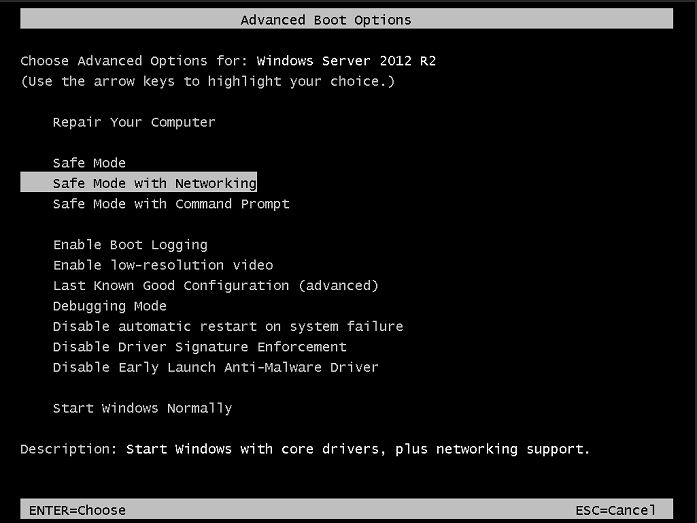
You will see multiple options, based on your needs you can select option.
Your VPS will now boot into Safe Mode. You can perform troubleshooting tasks such as uninstalling problematic software, updating drivers, or scanning for malware.
Exiting Safe Mode :
To return to normal operation, simply restart your VPS normally.
Kas see vastus oli kasulik?
Seotud artiklid
Hi Thank you for choosing service from Host4Fun . Go to run > cmd > slmgr.vbs /rearm and...
By default Windows Server 2008 firewall blocks ping requests. To enable please follow the...
By default Windows Server 2012 firewall blocks ping requests. To enable please follow the below...
Hi , Thank you for choosing Service from Host4Fun.Com. When we run command "yum update" on our...
For Guide Visit :...
