Databáze řešení
How to Install VPN on a VPS Tisknout tento článek
How to Install OpenVPN on a VPS Running AlmaLinux 9
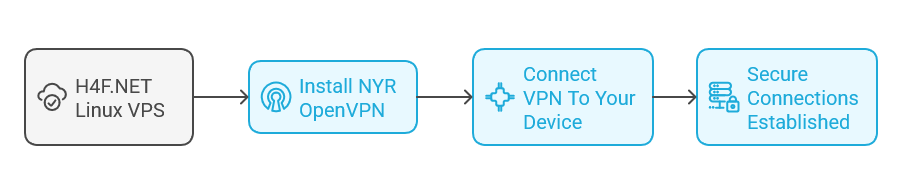
In this tutorial, we'll go through the process of installing NYR OpenVPN on a VPS running AlmaLinux 9. OpenVPN is a popular open-source VPN software that allows for secure point-to-point or site-to-site connections in routed or bridged configurations. NYR's installation script automates the whole process, making it easier to get your VPN up and running.
Prerequisites
- A VPS running AlmaLinux 9.
- Root or sudo access to your server.
- Basic knowledge of using the command line.
Step 1: Update Your System
Before you begin, it’s important to make sure your system is up-to-date. Connect to your VPS via SSH and run:
sudo dnf update -yThis command updates all the installed packages to the latest available versions.
Step 2: Install Required Packages
Ensure you have wget and curl installed, as they will be required to download scripts and packages. You can install these with:
sudo dnf install wget curl -yStep 3: Download the NYR OpenVPN Installation Script
Next, download the NYR OpenVPN installation script with the following command:
wget https://raw.githubusercontent.com/Nyr/openvpn-install/master/openvpn-install.shOnce the script is downloaded, make it executable:
chmod +x openvpn-install.shStep 4: Run the Installation Script
To start the installation, run the script with:
sudo ./openvpn-install.shDuring the execution of the script, you will be prompted with several questions. Follow the prompts to configure your OpenVPN installation:
- Choose a protocol: You can select between UDP or TCP (choose good defaults according to your needs).
- Choose a port: Default is 1194 but you can change it if necessary.
- Choose DNS: Select your preferred DNS provider.
- Set up client: Choose a name for the client which will connect to the VPN.
Step 5: Adjust Firewall Settings
Once the installation is complete, you may need to adjust the firewall to allow traffic through the OpenVPN port. If you are using firewalld, run:
sudo firewall-cmd --add-port=YOUR_PORT_NUMBER/udp --permanent
sudo firewall-cmd --reload
Replace YOUR_PORT_NUMBER with the port number that you chose during the installation.
Step 6: Configure SELinux (Optional)
If SELinux is enforcing, you might need to take additional steps to allow OpenVPN to work:
sudo setsebool -P openvpn_can_network_connect onStep 7: Connect to Your OpenVPN Server
After installation, the script will provide you with a .ovpn configuration file for the client you created. You can find it in your home directory (~/your-client-name.ovpn). You need to transfer this file to your local machine.
Use scp to securely copy the .ovpn file onto your local machine. For example:
scp username@your_server_ip:~/your-client-name.ovpn ~/Make sure to replace username and your_server_ip with your specific details.
Step 8: Install OpenVPN Client on Your Local Machine
To connect using OpenVPN, you'll need to install an OpenVPN client on your local machine. Here are some popular options:
- Windows: Download from OpenVPN's website.
- macOS: Use Tunnelblick.
- Linux: Install OpenVPN using your package manager (e.g.,
sudo apt install openvpnfor Ubuntu).
Once the client is installed, import the .ovpn configuration file into your client and initiate the connection.
Step 9: Verify Your Connection
After connecting, you can verify your IP address by visiting a website like What Is My IP. It should show the IP address of your VPS instead of your local ISP's IP.
Step 10: Additional User Management
If you need to add more clients or revoke access, re-run the installation script:
sudo ./openvpn-install.shYou will have options to add or revoke users and adjust configurations as needed.
We offer VPS from multiple locations around the world. You can install VPN for personal usages :
Buy VPN SERVER today Germany VPN Server | France VPN Server | Romania VPN Server | Finland VPN Server | Poland VPN Server
Byla tato odpověď nápomocná?
Související články
Hi Thank you for choosing service from Host4Fun . Go to run > cmd > slmgr.vbs /rearm and...
By default Windows Server 2008 firewall blocks ping requests. To enable please follow the...
By default Windows Server 2012 firewall blocks ping requests. To enable please follow the below...
Hi , Thank you for choosing Service from Host4Fun.Com. When we run command "yum update" on our...
For Guide Visit :...
