Biblioteca de cunoștințe
How to Add and Remove Users on Linux VPS Tipărire
How to Add and Remove Users on Ubuntu, Debian, AlmaLinux, and CentOS: A Step-by-Step Guide
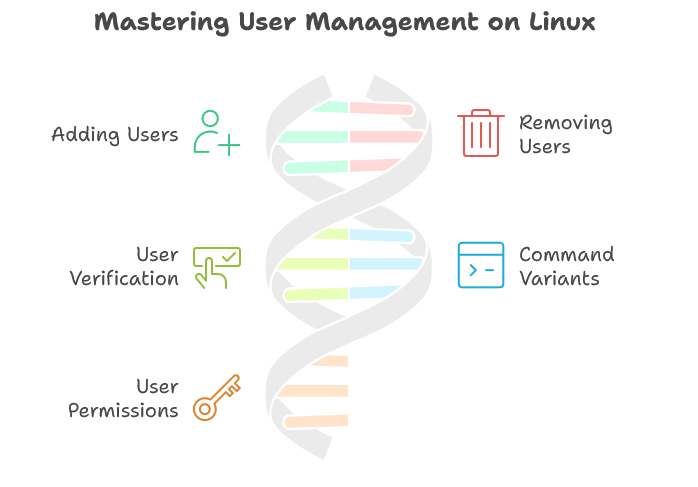
Managing users is a crucial skill for system administrators. Whether you're setting up a hosting environment, configuring a development server, or managing personal systems, knowing how to add and remove users safely is essential. In this comprehensive tutorial, we will cover how to perform these tasks on popular Linux distributions: Ubuntu, Debian, AlmaLinux, and CentOS.
Prerequisites
- A system running one of the above Linux distributions. Host4Fun offers wide-range of Linux OS.
- Root or sudo access to the system.
Adding Users
Step 1: Open Terminal
Launch the terminal application on your system. You can do this by searching for "Terminal" in your system's applications menu.
Step 2: Use the adduser Command
To add a new user, you can use the adduser command followed by the username you want to create. This command works on Ubuntu, Debian, and does also work on AlmaLinux and CentOS, but with slightly different variants.
On Ubuntu and Debian:
sudo adduser newusernameYou'll be prompted to set a password and fill out some basic information (like full name, room number, etc.), but you can press Enter to skip any information you don't wish to provide.
On AlmaLinux and CentOS:
sudo adduser newusername
sudo passwd newusername
The passwd command allows you to set the user's password after their account has been created.
Step 3: Verify the User Creation
To confirm the new user has been created, you can check the /etc/passwd file:
cat /etc/passwd | grep newusernameRemoving Users
Step 1: Use the deluser Command
To remove a user, you can use the deluser command on Ubuntu and Debian, while AlmaLinux and CentOS use userdel.
On Ubuntu and Debian:
sudo deluser newusernameYou can also remove the user's home directory and mail spool by adding the --remove-home option:
sudo deluser --remove-home newusernameOn AlmaLinux and CentOS:
sudo userdel newusernameSimilarly, to remove the user's home and mail files, add the -r option:
sudo userdel -r newusernameStep 2: Verify User Removal
To ensure the user has been removed, check the /etc/passwd file again:
cat /etc/passwd | grep newusernameIf no output is returned, the user has been successfully removed.
FAQ
Q1. What is the difference between adduser and useradd?
adduseris a higher-level command that is user-friendly and available on Debian-based systems like Ubuntu. It prompts for additional information and creates a home directory automatically.useradd, on the other hand, is a low-level command that is more suitable for advanced users who prefer to specify each detail manually.
Q2. Can I create a user without a password?
Yes, you can create a user without a password on most systems. For example, on Ubuntu or Debian, you can use:
sudo adduser --disabled-password newusernameThis creates a user account that cannot log in until a password is set.
Q3. How do I view the list of users?
You can display a list of all users on the system by viewing the /etc/passwd file:
cat /etc/passwdQ4. Can I restrict a user from sudo access?
By default, users can only gain sudo access if they are part of the sudo or wheel group. To prevent a user from using sudo, ensure they are not in these groups.
Q5. How can I change a user's password?
To change a user’s password, use the passwd command followed by the username:
sudo passwd usernameYou will be asked to enter a new password.
Managing users on Linux is straightforward once you know the commands. By following this guide, you can efficiently add and remove users on Ubuntu, Debian, AlmaLinux, and CentOS. Make sure to always be cautious when removing user accounts or handling user permissions to maintain system security and integrity. Happy computing!
Răspunsul a fost util?
Articole similare
Hi Thank you for choosing service from Host4Fun . Go to run > cmd > slmgr.vbs /rearm and...
By default Windows Server 2008 firewall blocks ping requests. To enable please follow the...
By default Windows Server 2012 firewall blocks ping requests. To enable please follow the below...
Hi , Thank you for choosing Service from Host4Fun.Com. When we run command "yum update" on our...
For Guide Visit :...
