Teadmistebaas
Guide to Linux Remote Desktop on Your VPS Prindi artikkel
A Guide to Linux Remote Desktop
Introduction
In an increasingly digital world, remote access is an essential capability for many IT professionals and companies alike. Linux Remote Desktop allows users to access their Linux machines from a remote location, enabling them to work seamlessly from anywhere. Whether you’re a system administrator managing servers or a user accessing your home computer from miles away, Linux remote desktop solutions can streamline your workflow, provide essential access to resources, and improve productivity. This guide will delve into the intricate details of Linux Remote Desktop, including its definition, key features, installation steps for various Linux distributions, popular RDP clients, and additional tools to facilitate remote access.
What is Linux Remote Desktop?
Linux Remote Desktop refers to the capability of accessing and controlling a Linux desktop environment from a remote client machine. This could be done over the internet or through a local network. This functionality is immensely beneficial for system administrators, developers, and power users who need to manage servers, access files, or provide support remotely.
What Can You Do with Linux Remote Desktop?
- Access any application installed on the remote Linux system.
- Share the screen with colleagues or clients for collaboration.
- Maintain servers without a direct physical connection.
- Troubleshoot and provide technical support easily.
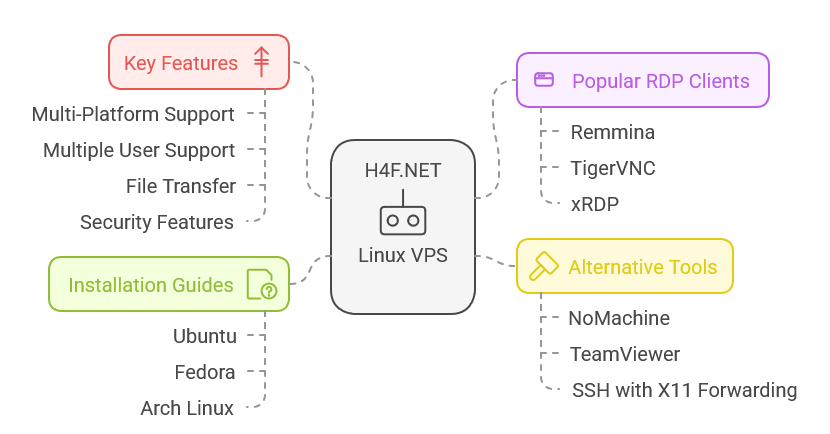
Key Features of Linux Remote Desktop Software
-
Multi-Platform Support: Access Linux machines from various platforms including Windows, macOS, and even other Linux systems.
-
Multiple User Support: Multiple users can simultaneously access a Linux machine through remote desktop capabilities.
-
File Transfer: Many remote desktop applications allow you to transfer files between the host and client systems seamlessly.
-
Session Recording: Some tools provide the ability to record sessions for training or auditing purposes.
-
Security Features: Most Linux Remote Desktop software comes with encryption protocols to ensure secure connections.
-
Low Bandwidth Usage: Efficient remote desktop tools can function well with low bandwidth, ensuring the connection remains stable and performant.
Most Used RDP Clients for Linux
1. Remmina
Remmina is a versatile remote desktop client that supports multiple protocols including RDP, VNC, SPICE, and more. It is user-friendly and can manage multiple remote desktop connections.
Installation:
# On Ubuntu/Debian
sudo apt update
sudo apt install remmina

# On Fedora
sudo dnf install remmina

# On Arch Linux
sudo pacman -S remmina
2. TigerVNC
TigerVNC is another popular choice that focuses on performance and compatibility with various VNC clients and servers.
Installation:
# On Ubuntu/Debian
sudo apt update
sudo apt install tigervnc-viewer

# On Fedora
sudo dnf install tigervnc

# On Arch Linux
sudo pacman -S tigervnc
3. xRDP
xRDP allows users to connect to their Linux desktops using Windows' native Remote Desktop Protocol (RDP), facilitating easy connections from Windows-based systems.
Installation:
# On Ubuntu
sudo apt update
sudo apt install xrdp
sudo systemctl enable xrdp
sudo systemctl start xrdp

# On Fedora
sudo dnf install xrdp
sudo systemctl enable xrdp
sudo systemctl start xrdp
Other Tools to Access Remote Linux Desktop
Besides typical RDP clients, there are also alternative solutions for accessing a Linux desktop remotely:
NoMachine
NoMachine is lightweight, fast, and permits intuitive screen-sharing and remote access.
TeamViewer
While it is cross-platform, TeamViewer requires installation on both the remote and client computers, making it highly suitable for ad-hoc support.
X2Go:
A remote desktop solution that is robust and performs well over low-bandwidth connections. It is perfect for providing a full remote desktop experience.
SSH with X11 Forwarding
For devs and system admins, using SSH with X11 forwarding can allow you to run GUI applications on a remote Linux machine.
ssh -X user@remote-address
Enhanced Remote Access with H4F.NET
While setting up remote desktop solutions can significantly elevate productivity, you might also consider leveraging H4F.NET for specialized needs. They offer high-performance Windows VPS RDP and Linux VPS options. With guaranteed uptime and robust security measures, H4F.NET allows you to tailor remote access strategies that suit your organizational requirements. Whether you're managing servers or developing applications, H4F.NET provides the tools necessary for optimal performance and security.
Installation Guide for Popular Linux Distributions
Ubuntu
-
Update the system:
-
sudo apt update -
Install the desired RDP client, e.g., xRDP:
-
sudo apt install xrdp -
Configure the firewall:
-
sudo ufw allow 3389/tcp -
Start the xRDP service:
-
sudo systemctl start xrdp
Fedora
-
Update the system:
-
sudo dnf update -
Install xRDP:
-
sudo dnf install xrdp -
Allow access through the firewall:
-
sudo firewall-cmd --permanent --add-port=3389/tcp sudo firewall-cmd --reload -
Start the xRDP service:
-
sudo systemctl start xrdp
Arch Linux
-
Update the system:
-
sudo pacman -Syu -
Install xRDP:
-
sudo pacman -S xrdp -
Start and enable the service:
-
sudo systemctl enable xrdp
sudo systemctl start xrdp
FAQ
1. Can I access a Linux desktop from a Windows machine?
Yes, using an RDP client like Remmina or xRDP, you can access a Linux desktop from Windows.
2. Is remote desktop access secure?
Most remote desktop solutions incorporate encryption protocols for secure connections. Additionally, firewalls can be configured to enhance its security further.
3. Do I need a dedicated IP for remote access?
A static public IP can simplify remote access, but it is not strictly necessary. Dynamic DNS services can also help in these scenarios.
4. What is the difference between VNC and RDP?
While both allow remote access, RDP is optimized for Windows systems and offers better performance on low-bandwidth connections compared to VNC, which is more platform agnostic and visually-oriented.
5. Is there any cost associated with remote desktop software?
Many RDP clients for Linux are open-source and free, but some solutions may offer premium features at a cost.
6.Do I need to configure my firewall?
Yes, ensure that the relevant ports (like 3389 for RDP) are open in your firewall settings to establish a connection.
7. How can I secure my remote desktop connection?
Use strong passwords, enable encryption, use VPNs, and regularly update your remote desktop software to enhance security.
Linux Remote Desktop solutions provide valuable tools for accessing and managing Linux desktops remotely. Whether you opt for Remmina, xRDP, or NoMachine, this guide has armed you with the necessary knowledge on installation and features that cater to your needs. As digital workplaces continue to evolve, leveraging remote desktop capabilities can enhance productivity and flexibility immensely, facilitating a work-from-anywhere environment that meets modern demands. Don’t forget to check out H4F.NET for Best VPS options to elevate your remote desktop experience!
Kas see vastus oli kasulik?
Seotud artiklid
Hi Thank you for choosing service from Host4Fun . Go to run > cmd > slmgr.vbs /rearm and...
By default Windows Server 2008 firewall blocks ping requests. To enable please follow the...
By default Windows Server 2012 firewall blocks ping requests. To enable please follow the below...
Hi , Thank you for choosing Service from Host4Fun.Com. When we run command "yum update" on our...
For Guide Visit :...
